
For some blockchains (e.g. Ethereum and EVM chains), you may need to add (import) a token if it isn't visible in your wallet.
This is because, for Ethereum and EVM chains, the contents of your wallet is loaded by checking tokens individually to see if the token is held in your wallet. NUFI automatically checks for the most popular tokens but new or lesser-known tokens may not be discovered automatically. If a token isn't visible in your wallet, you can import it by following the steps below.
To import a custom token into your wallet:
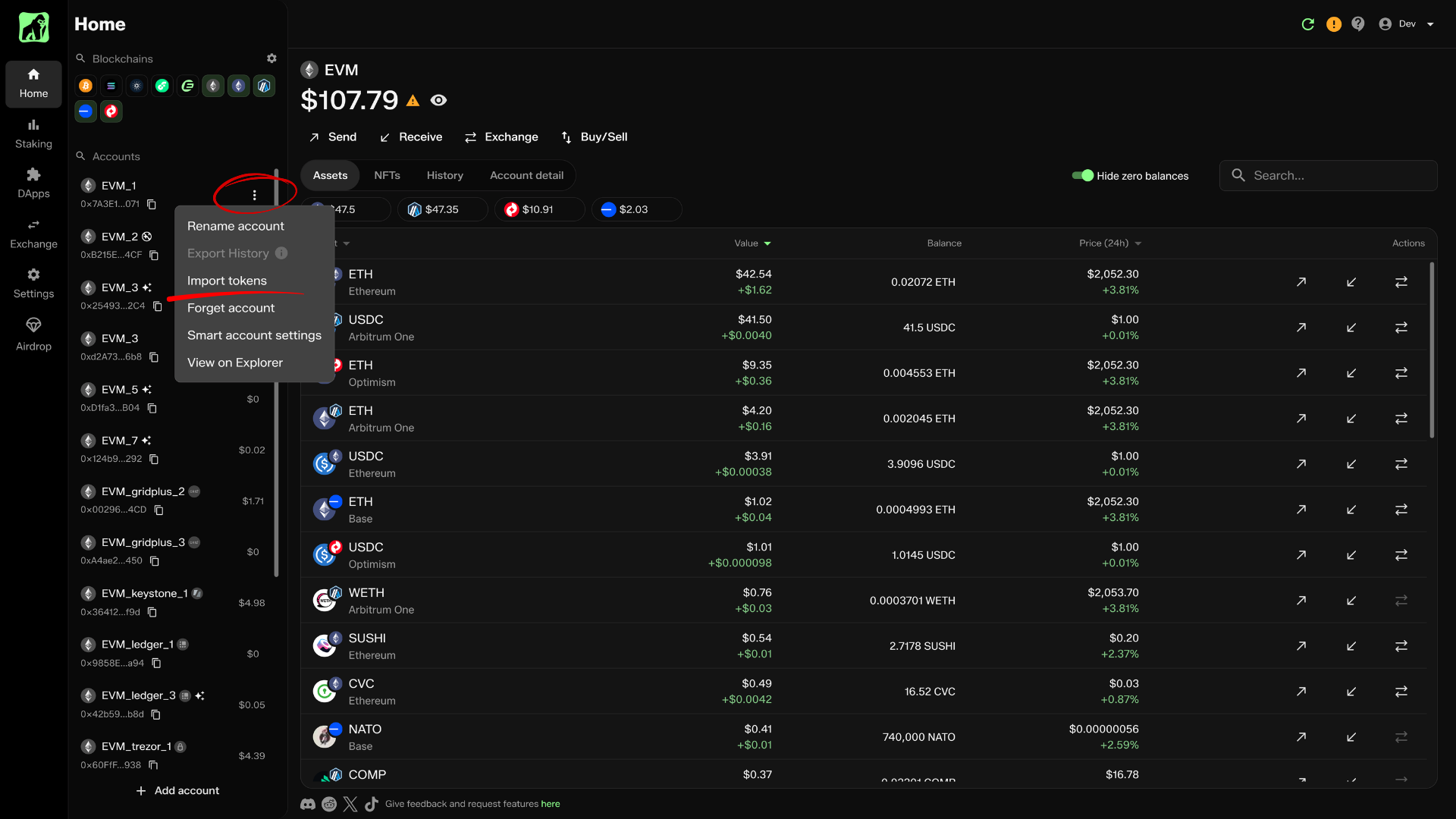
1) Home screen > on the left side, find the account you want to add the token to.
2) Next to the account name, click the 3 dots, then 'Import tokens.'
3) Confirm the account; if you want to add the same token to multiple accounts, complete this process first and then repeat the process, selecting a different account each time.
4) Search for the token from the pre-populated list (you can import multiple tokens at the same time).
If the token you want to import isn't in the pre-populated list, click the 'Custom' tab and paste the token's Contract address. The token symbol, token name and decimals will pre-fill automatically. You can find the token's contract address by searching for the token using etherscan.io/tokens, coinmarketcap.com or coingecko.com.
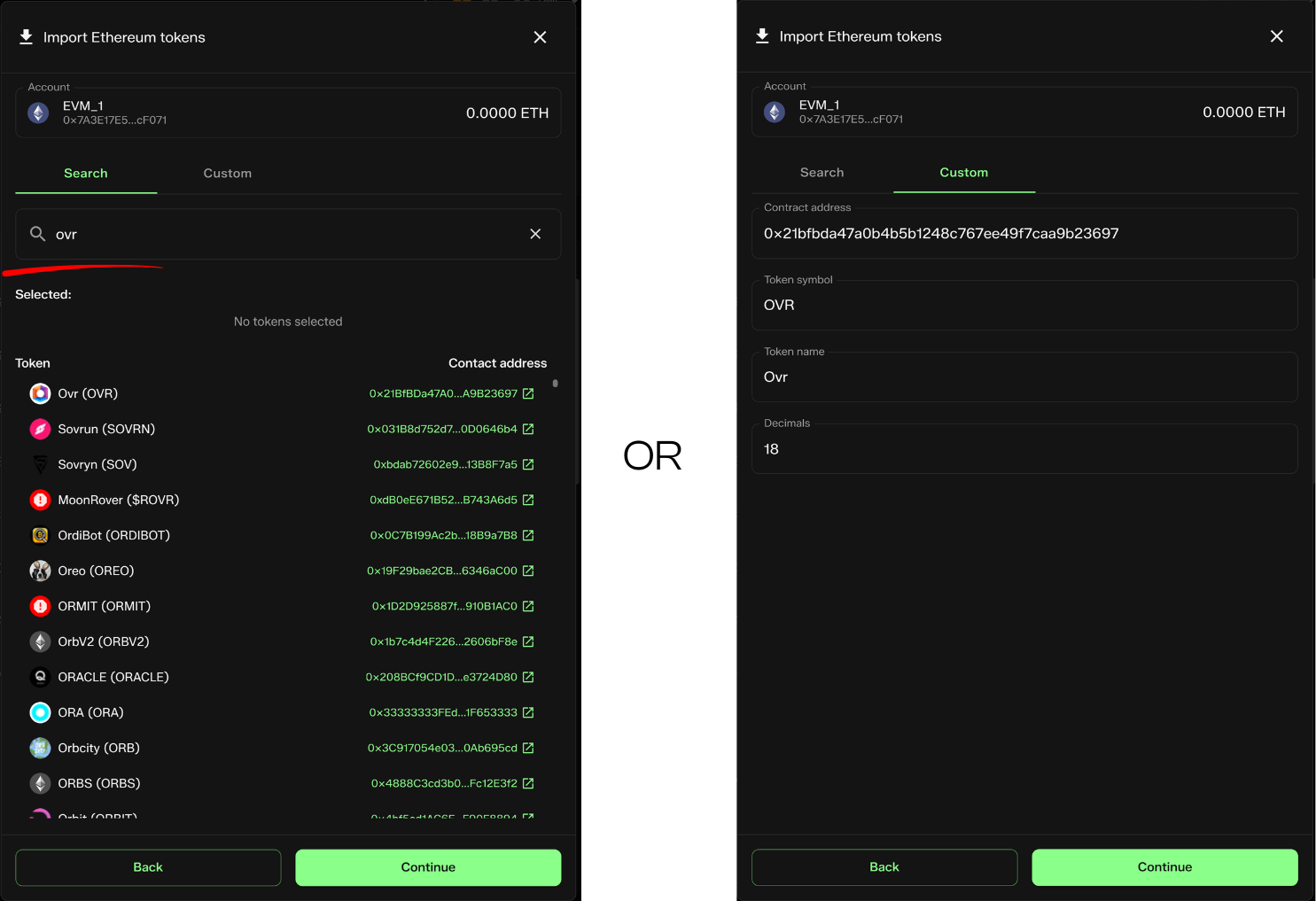
5) Click Continue; review the token(s) to be added, and click Import. The token will be added to your wallet (note: you may need to refresh your wallet using the icon at the top).
To remove a custom token from your wallet:
1) Home > on the left side, find the account you want to remove the token from
2) Find the token and click the trashcan icon on the right side
3) Click 'Forget token'; the token will no longer be displayed in your wallet (unless you manually re-add it, which you can do at any time)