
Pair your GridPlus Lattice1 with NUFI to manage its Bitcoin, Solana, Ethereum/EVM and SVM accounts in NUFI's interface. Setup takes about a minute. See all supported chains.
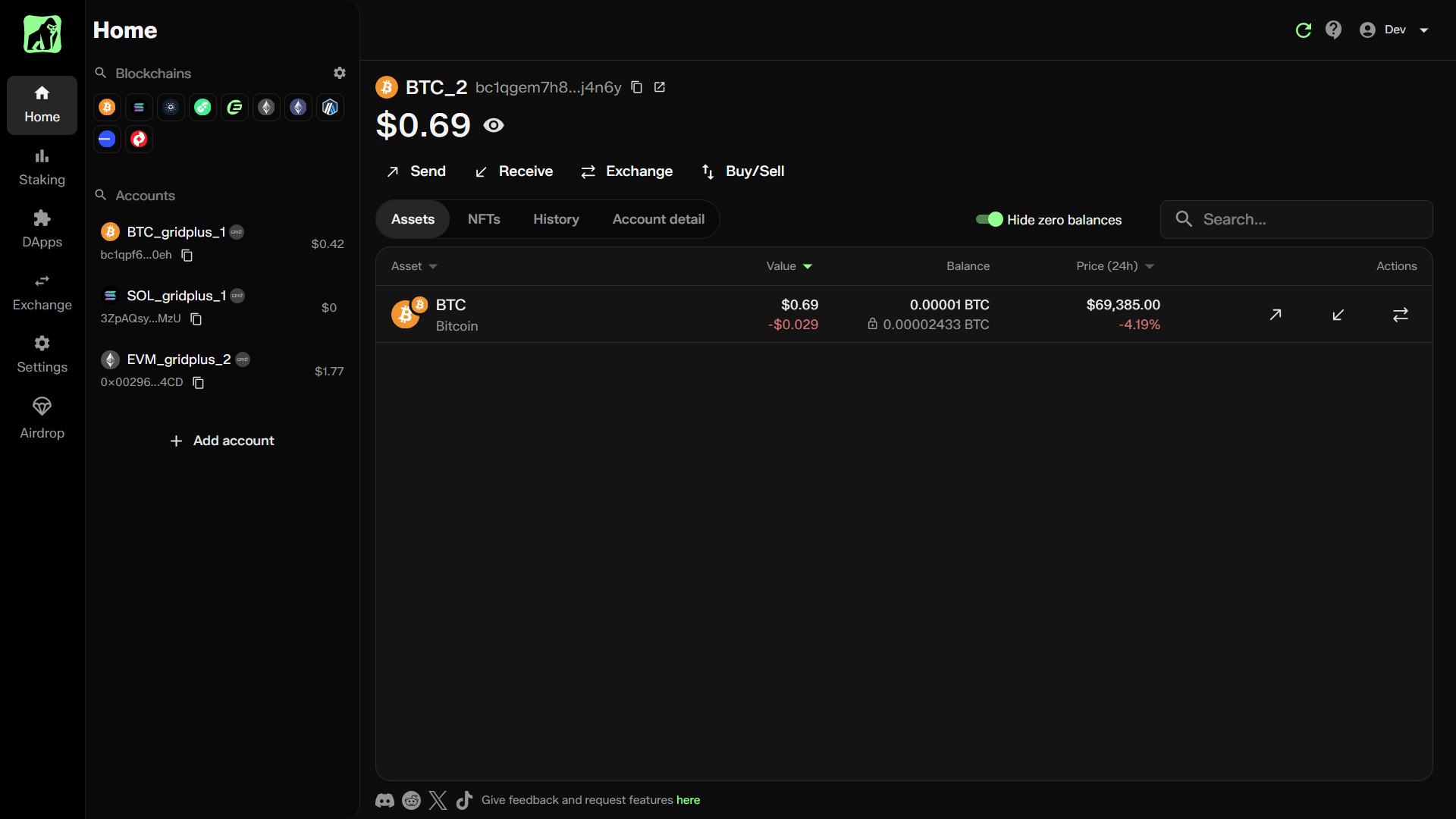
What you can do
- Send and receive assets on hundreds of chains
- Stake SOL directly on-chain
- Connect to DeFi and other Dapps
- Swap tokens on Solana DEXes
- Exchange 1,000+ assets across 185 blockchains (via NEAR Intents, Swapkit and Changelly)
- Buy and sell crypto by card, Apple/Google Pay, PayPal and more
- Manage NFTs in a multi-chain gallery
- View and export transaction and staking history
- Manage GridPlus device and hot wallet accounts side by side
- See all supported chains
Is it safe?
Your crypto and private keys never leave your device. Pairing only shares public keys and addresses, so NUFI can show your balances and history. NUFI can request signatures, but every transaction must be approved on your Lattice1. NUFI is non-custodial and can't access your funds. Only pair through the official Lattice Connector at lattice.gridplus.io. Never enter your seed phrase online.
Before you start
- Update your Lattice1 firmware.
- Make sure your Lattice1 is online and unlocked.
Setup
1. Choose a NUFI version
- Browser extension: connects to all Dapps.
- Web wallet: no install needed, and connects to Dapps that support WalletConnect.
2. Create a profile
- Open NUFI and select Pair hardware wallet.
- Set a wallet name and password. This lets you log in without your Lattice1, but you'll still need the device to sign transactions.
- Save the recovery phrase shown or skip this if you'll only use hardware wallet accounts.
3. Pair your accounts
- When NUFI opens, enable the blockchains you want to use.
- You can do this anytime by clicking the gear icon next to Blockchains in the top left.
- Go to Add Account (left side) → Add new HW account.
- Choose a blockchain, then select GridPlus Lattice1.
- The Lattice Connector will open. Check that its address is lattice.gridplus.io, then:
- Enter your Device ID and choose a connection password, then click Connect.
- Enter the pairing code shown on your Lattice1 screen.
- Save this password. You'll need the same one to add more accounts later, including SafeCard accounts. If you forget it, you'll have to remove the NUFI permission on your Lattice1 and pair again.
- In NUFI, select the accounts to pair, name them if you like, and click Continue.
- On some blockchains, your Lattice1 can derive different accounts from the same recovery phrase using different derivation paths. NUFI shows each derivation path as a separate tab at the top.
Repeat step 3 for each blockchain. You can add existing or new accounts at any time via Add Account at the bottom of the accounts list.